Standards1
Standards
Standards – Menu Navigation and Functions
Definition and Functionality:
Standards are concepts in which production time is divided by different codes to distinguish between productive and unproductive time as well as different categories within both of them. For the off standards, i.e. unproductive time the user is not required to produce at 100% efficiency. For Incentive gross pay the standards have a payment structure for different standard and off-standards. These standards determine the status of the work performed (standard / off-standard).
Navigation:
Manage � Standards � Standards.
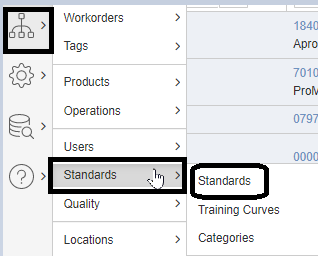
Standards Menu
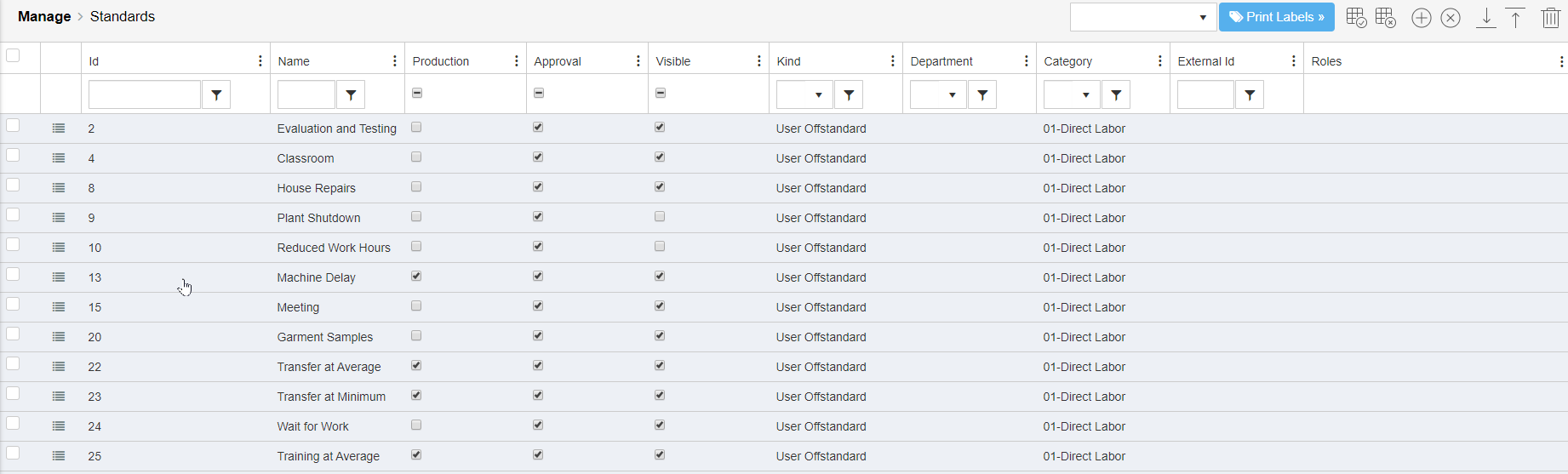
Standards Detail Setup:
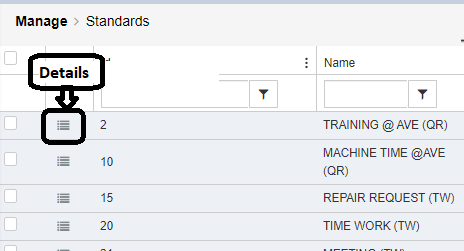
The Standards have information that identifies how unproductive time or productive time is processed. Standard attributes allow you to configure as a specific type and link to previous standards, they can wait a period of time before changing to the correct standard. They may have timers to go back to the previous concept. The can be attached to training curves and can be assigned to a specific departments.

Name - Relevant name for the offstandard
Kind - Indicates the kind of offstandard. Ex. User, Location, Absence, Weekly Group etc
Link to Standard - Indicates the status that the user should be returned to upon exiting
First Mins / Day - Specifies that number of minutes this be active at the beginning of the user shift
After secs/ Event - Allows you to specify the max number of seconds that a user can stay in the offstandard before being returned to onstandard/previous offstandard.
Training Curve - Indicates the training curve to associate with this offstandard
User Training Curve - Indicates the users training curve to associate with this offstandard
Department - Allows you to indicate the departments that have visibility to see the offstandard which will recognize up to 4 sub levels deep.
Active - If not active, the offstandard will not be visible or selectable in any web UI or tablet screens
Allow Production - Provides you with the option to prevent or allow production while logged into the offstandard
Requires Approval - If checked, the offstandard will require approval before they can enter the offstandard. The roles assigned to the offstandard will dictate who receives the email notification.
Visible on tablet - Indicates whether this offstandard will be visible and selectable for the tablet operators
The standards characteristics of IGP is to allow formulas to be used to make the payment during a specific time.
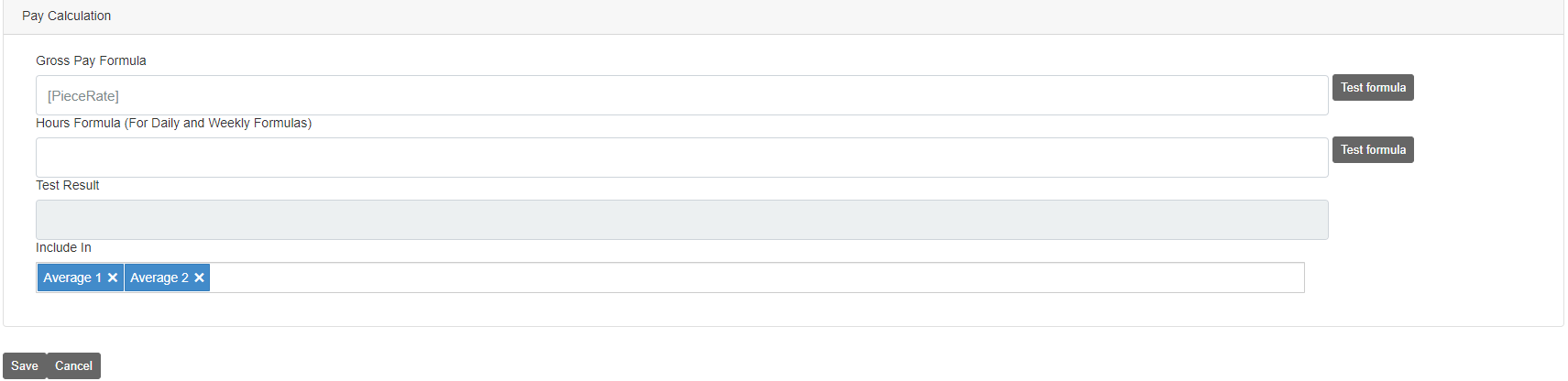
Gross Pay Formula - The formula to be used in order to calculate payment for time spent in the offstandard
Hours Formula (For Daily and Weekly Formulas) - The forumula to be used in order to calculate hours spent in offstandard
Test Result - Test results from testing the Gross Pay or Hours formulas via the "Test Formula" button
Include In - Indicates the average or other payment calculations for the offstandard time to be included in
Gross Pay Formula:
Creates gross pay with the current standard hours
Hours Formula:
Calculates Dynamic hours for the calculation of Gross Pay Formulas.
Include in:
Any Standard could be used to calculate averages or other groups of values.
Additional Notes:
- Only offstandards designated as an absence will be visible in the PTO request menu for operators
- Location offstandards stick with the location; User offstandards stick with the user
- Offstandards can be approved from the Tools>Teamleader menu or by scanning a supervisor QR code at the tablet
- Onstandard QR label can be printed from the offstandard menu by selecting an offstandard then select a custom report from the Manage>Standards menu then printing. The Onstandard label will be included in the printouts as the very last label and once scanned, it will return the operator to onstandard while in break or offstandard
Pay Formula AI Chat Agent:
Core Functionality
The update introduces the PayFormulaAgent, a specialized, context-aware AI assistant integrated directly into the Shopfloor Control (SFC) incentive platform. It is designed to help users interactively manage, test, and author complex pay formulas using natural language.
Key Capabilities
Formula Generation & Modification: Users can write or modify complex pay formulas using plain-text instructions.
Troubleshooting & Explanation: The agent can analyze existing formulas, break down how they work, and help diagnose errors.
Interactive Simulation: It allows users to test formulas in real-time by passing simulated input parameters to see how the system calculates metrics before committing changes.
Cross-Checking & Compliance: The agent audits formula structures to ensure proper handling of business logic like grouping and average inclusions.
Context & Content Awareness
Dialog Detection: The agent automatically detects if a user has a formula dialog open. It can implicitly understand conversational phrases like "this formula" or "the current offstandard" without forcing the user to copy and paste the logic into the chat.
Reactive UI Refreshing: When a formula is saved, the agent communicates with the host screen to trigger an instant refresh, ensuring the user immediately sees the updated logic in their current view without needing a manual page reload.
Behind-the-Scenes Architecture
Modular Agent System: The backend has been refactored to support distinct agents (e.g., PayFormulaAgent, GeneralAgent) by utilizing a new attribute-based tool registry that dynamically exposes specific function capabilities to the AI.
Explicit Commit Gate: For safety, the SaveFormula tool is locked behind strict user intent—the agent drafts and refines syntax but will never overwrite system database records unless explicitly instructed to save.
Streaming UI Integration: Implements Real-time Server-Sent Events (SSE) combined with Kendo UI to stream responses token-by-token for a more responsive user experience.
Created with the Personal Edition of HelpNDoc: Easy EPub and documentation editor